Today we’ll explore the engineered basketball dataset so we can better understand the relationships between player statistics before creating final visualizations and training machine learning models.
This is Part 4 of the Basketball Data Science Project, an end-to-end Python series using 2023–24 NCAA basketball player statistics. The project explores whether Caitlin Clark’s season was a statistical outlier and builds toward a machine learning workflow for predicting fantasy points.
In Part 3, we created new features from the cleaned dataset, including two-point field goal metrics, conference labels, per-game statistics, assist-to-turnover ratio, and fantasy points. In this article, we’ll use exploratory data analysis to inspect distributions, compare variables, identify relationships, and decide which features are most useful for visualization and modeling.
Previous: Feature Engineering
Full series: Basketball Data Science Project
Next: Data Visualizations
Overview
In this part of the project, we’ll explore the engineered player dataset. The workflow includes:
- Loading the engineered dataset from Part 3
- Reviewing summary statistics for numerical features
- Selecting columns for exploratory analysis
- Comparing player statistics across the dataset
- Creating correlation matrices and heatmaps
- Identifying relationships between fantasy points and other features
- Using the exploratory results to guide later visualizations and model selection
For the full project roadmap, including the overview diagram and links to every article, see the Basketball Data Science Project hub.
Dependencies
This article uses the engineered dataset from Part 3.
For this article, we’ll use:
- pandas - loading and summarizing the engineered dataset
- NumPy - numerical calculations
- matplotlib - base plotting
- seaborn - statistical visualizations
- Plotly - interactive charts
import pandas as pd
import numpy as np
import matplotlib.pyplot as plt
import seaborn as sns
import plotly.express as px
import plotly.io as pio
Since I’m creating these graphs using JupyterLab, I’ll also make sure the jupyterlab-plotly extension is installed and will specify that plotly charts should display as an iframe.
pio.renderers.default = 'iframe'
Import Data
In Part 3 of this series, we engineered new features for our dataset, which is stored in a dataframe named player_data. If you want to follow along with the code examples in this article, it’s recommended to import the player_data dataframe before proceeding.
player_data = pd.read_excel('player_data_engineered.xlsx')
player_data.head()
| PLAYER_NAME | Team | Class | Height | Position | PLAYER_ID | TEAM_NAME | GAMES | MINUTES_PLAYED | FIELD_GOALS_MADE | ... | Conference | MINUTES_PER_GAME | FOULS_PER_GAME | POINTS_PER_GAME | ASSISTS_PER_GAME | STEALS_PER_GAME | BLOCKS_PER_GAME | REBOUNDS_PER_GAME | ASSIST_TO_TURNOVER | FANTASY_POINTS | |
|---|---|---|---|---|---|---|---|---|---|---|---|---|---|---|---|---|---|---|---|---|---|
| 0 | Kiara Jackson | UNLV (Mountain West) | Junior | 67 | Guard | ncaaw.p.67149 | UNLV | 29 | 895 | 128 | ... | Mountain West | 30.862069 | 1.620690 | 11.137931 | 4.655172 | 1.068966 | 0.172414 | 4.448276 | 3.214286 | 710.3 |
| 1 | Raven Johnson | South Carolina (SEC) | Sophomore | 68 | Guard | ncaaw.p.67515 | South Carolina | 30 | 823 | 98 | ... | SEC | 27.433333 | 1.133333 | 8.100000 | 4.933333 | 2.000000 | 0.166667 | 5.366667 | 2.792453 | 735.2 |
| 2 | Gina Marxen | Montana (Big Sky) | Senior | 68 | Guard | ncaaw.p.57909 | Montana | 29 | 778 | 88 | ... | Big Sky | 26.827586 | 0.896552 | 10.241379 | 3.827586 | 0.551724 | 0.068966 | 2.068966 | 2.921053 | 533.5 |
| 3 | McKenna Hofschild | Colorado St. (Mountain West) | Senior | 62 | Guard | ncaaw.p.60402 | Colorado St. | 29 | 1046 | 231 | ... | Mountain West | 36.068966 | 1.172414 | 22.551724 | 7.275862 | 1.241379 | 0.137931 | 3.965517 | 2.971831 | 1117.5 |
| 4 | Kaylah Ivey | Boston College (ACC) | Junior | 68 | Guard | ncaaw.p.64531 | Boston Coll. | 33 | 995 | 47 | ... | ACC | 30.151515 | 1.454545 | 4.333333 | 5.636364 | 1.090909 | 0.030303 | 1.727273 | 2.906250 | 500.4 |
5 rows × 40 columns
That’s all the setup steps needed, so we’re ready to move on to identifying the relationships between various variables in our dataset.
Identify Relationships between Variables
In this section, we’ll explore the dataset to understand relationships between various parameters. We’ll use the pandas describe() function for a statistical summary, create a correlation matrix to visualize variable relationships, and generate a pairwise plot for a detailed view. This analysis will help us identify patterns and help us select meaningful visualizations for this data science project.
Describe the Dataset
The first step is to get a statistical summary of our dataset. The describe() function in pandas provides a high-level statistical summary for each numerical column of our dataset, including:
- Count - The number of non-null entries in a column.
- Mean- The average value of all entries in a column.
- Standard Deviation - A measure of the amount of variation or dispersion of the entries in a column.
- Minimum - The smallest entry in a column.
- 25th percentile - The value below which a quarter of the entries in a column fall.
- Median - The middle value in a column when the entries are sorted in ascending or descending order.
- 75th percentile - The value below which three quarters of the entries in a column fall.
- Maximum - The largest entry in a column.
player_data.describe()
| Height | GAMES | MINUTES_PLAYED | FIELD_GOALS_MADE | FIELD_GOAL_ATTEMPTS | FIELD_GOAL_PERCENTAGE | THREE_POINTS_MADE | THREE_POINT_ATTEMPTS | THREE_POINT_PERCENTAGE | FREE_THROWS_MADE | ... | TWO_POINT_PERCENTAGE | MINUTES_PER_GAME | FOULS_PER_GAME | POINTS_PER_GAME | ASSISTS_PER_GAME | STEALS_PER_GAME | BLOCKS_PER_GAME | REBOUNDS_PER_GAME | ASSIST_TO_TURNOVER | FANTASY_POINTS | |
|---|---|---|---|---|---|---|---|---|---|---|---|---|---|---|---|---|---|---|---|---|---|
| count | 900.000000 | 900.000000 | 900.000000 | 900.000000 | 900.000000 | 900.000000 | 900.000000 | 900.000000 | 841.000000 | 900.00000 | ... | 900.000000 | 900.000000 | 900.000000 | 900.000000 | 900.000000 | 900.000000 | 900.000000 | 900.000000 | 900.000000 | 900.000000 |
| mean | 70.643333 | 29.402222 | 841.816667 | 121.420000 | 279.767778 | 43.482444 | 27.165556 | 81.780000 | 28.875505 | 62.66000 | ... | 47.129786 | 28.611697 | 2.215790 | 11.306896 | 2.334072 | 1.300121 | 0.591105 | 5.203494 | 1.059605 | 664.424111 |
| std | 3.460328 | 2.172842 | 161.470966 | 47.015549 | 101.044999 | 6.988500 | 24.575016 | 66.603741 | 12.276598 | 33.83484 | ... | 7.335796 | 5.005458 | 0.591091 | 4.269809 | 1.365048 | 0.616440 | 0.587401 | 2.233181 | 0.569156 | 185.177943 |
| min | 62.000000 | 18.000000 | 223.000000 | 19.000000 | 42.000000 | 22.600000 | 0.000000 | 0.000000 | 0.000000 | 3.00000 | ... | 23.255814 | 8.259259 | 0.413793 | 1.766667 | 0.043478 | 0.096774 | 0.000000 | 1.294118 | 0.040000 | 189.900000 |
| 25% | 68.000000 | 29.000000 | 748.250000 | 89.000000 | 208.750000 | 38.775000 | 4.000000 | 18.000000 | 24.700000 | 38.00000 | ... | 42.343026 | 26.000000 | 1.800000 | 8.341954 | 1.250000 | 0.833333 | 0.148148 | 3.412197 | 0.643591 | 544.425000 |
| 50% | 71.000000 | 30.000000 | 860.000000 | 119.000000 | 278.000000 | 42.850000 | 22.500000 | 75.000000 | 31.400000 | 57.00000 | ... | 46.963563 | 29.360753 | 2.200000 | 11.266963 | 2.095262 | 1.233333 | 0.375000 | 4.745370 | 0.968990 | 651.100000 |
| 75% | 73.000000 | 31.000000 | 963.000000 | 151.000000 | 345.000000 | 47.500000 | 44.000000 | 129.250000 | 36.200000 | 83.00000 | ... | 51.761573 | 31.976562 | 2.633333 | 14.146205 | 3.210598 | 1.666667 | 0.933333 | 6.879464 | 1.362177 | 774.075000 |
| max | 80.000000 | 34.000000 | 1230.000000 | 332.000000 | 719.000000 | 66.700000 | 168.000000 | 437.000000 | 100.000000 | 203.00000 | ... | 68.224299 | 38.437500 | 3.781250 | 31.875000 | 8.812500 | 4.677419 | 3.433333 | 15.312500 | 3.214286 | 1716.800000 |
8 rows × 33 columns
This gives an understanding of the distribution of data and characteristics of each column. This helps us identify any outliers or missing data, as well as assess how spread out the data is. It’s often recommended to take a few minutes to scan through the statistics for each column to get a better understanding of each one and to quickly check for any issues. For example, you might notice that the count for the THREE_POINT_PERCENTAGE column is lower than the other columns. If you’ve read Part 2 of this series, you might remember that some rows are missing a three point percentage in cases where a player had zero three point goals attempted, so it makes sense that the count of non-null THREE_POINT_PERCENTAGE rows is 841 instead of 900.
Feature Selection
Next, it’d be helpful to generate a few charts to explore the relationships between the various player statistics. However, including too many metrics can slow down the plot generation process, so let’s limit the number of numerical columns. (To be clear, this step is entirely optional and it is possible to generate a plot with all of these columns.)
But how do we choose the right columns? This is often an entire step of a data science project and is referred to as feature selection. There are plenty of feature selection methods, but identifying which features are best often depends on your specific use case. For example, if you’re developing a machine learning model that optimizes for defensive players, you might want to include features such as steals, blocks, and rebounds. However, if you’re optimizing for offensive players, then you might focus on features like points and assists. Other features, such as turnovers and fouls, might be included in both cases.
For today’s purpose, we don’t have a specific use-case in mind and are instead more focused on exploring the dataset and creating interesting visualizations. So, let’s make an educated guess on some features that might be similar enough to choose a few of them. For example, for each points metric (two-point goals, three-point goals, total field goals, and free throws) there are three columns (goals made, goals attempted, and goal percentage).
player_data[['PLAYER_NAME', 'TWO_POINTS_MADE', 'TWO_POINT_ATTEMPTS', 'TWO_POINT_PERCENTAGE']].head()
| PLAYER_NAME | TWO_POINTS_MADE | TWO_POINT_ATTEMPTS | TWO_POINT_PERCENTAGE | |
|---|---|---|---|---|
| 0 | Kiara Jackson | 100 | 222 | 45.045045 |
| 1 | Raven Johnson | 78 | 157 | 49.681529 |
| 2 | Gina Marxen | 30 | 79 | 37.974684 |
| 3 | McKenna Hofschild | 176 | 360 | 48.888889 |
| 4 | Kaylah Ivey | 15 | 55 | 27.272727 |
These columns are distinct and we already suspect that they are interrelated. The goal percentage is directly calculated by dividing goals made by goals attempted, so we likely don’t need to include that for each metric. The number of goals made is likely related to the number of goals attempted (you cannot score a goal without attempting it), so we could use just one of those two columns as a proxy in today’s visualizations. You can use either, but since goals made is directly used in the calculation for fantasy points, let’s go with that one.
In summary, we can collapse the goals made, goals attempted, and goal percentage columns down into just the goals made columns. Using similar logic, we can include total rebounds (excluding offensive and defensive rebounds), minutes played (instead of games played), and remove certain calculated columns (like the per-game metrics and assist-to-turnover ratio). This dramatically reduces the number of numerical columns for these initial exploratory plots while still preserving critical features.
Here’s the final list of numerical columns we’ll use for the first few visualizations:
numerical_columns = ['Height', 'MINUTES_PLAYED', 'FIELD_GOALS_MADE',
                     'THREE_POINTS_MADE', 'TWO_POINTS_MADE', 'FREE_THROWS_MADE',
                     'TOTAL_REBOUNDS', 'ASSISTS', 'TURNOVERS',
                     'STEALS', 'BLOCKS', 'FOULS', 'POINTS', 'FANTASY_POINTS']
Correlation vs Causation
Note that correlation does not imply causation. Just because there is a statistical association between two variables does not mean that a change in one variable actually causes a change in the other variable. There is an entire website containing spurious correlations, but here’s one example of two variables that are strongly correlated, but are unlikely to have a cause-and-effect relationship: the divorce rate in Maine and the per capita consumption of margarine.
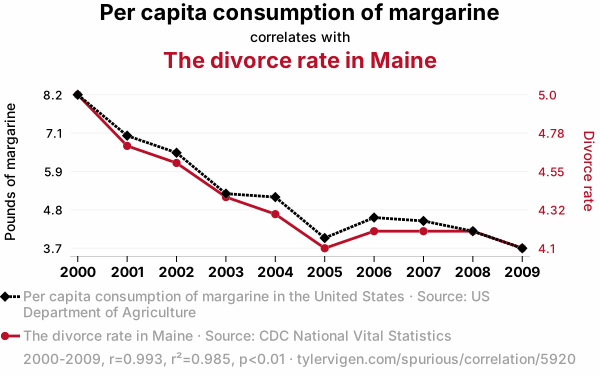
So keep in mind that correlation is not the same as causation. That said, knowing which variables are correlated with each other is still useful for this project. By examining the correlation matrix, we can identify which statistics tend to increase or decrease together, which can give us insights about the data. This can be particularly useful for feature selection in machine learning models, as it helps to avoid situations where multiple features are highly correlated with each other (multicollinearity).
Generate Correlation Matrix
A correlation matrix is a table showing the correlation coefficients between many variables. Each cell in the table shows the correlation between two variables. The value is in the range of -1 to 1 and each cell color indicates the strength and direction of the correlation between two variables. If two variables have a high correlation, it means that when one variable changes, the other variable tends to also change in a specific direction. Values closer to zero indicate a weak correlation, where a change in one variable does not correlate with a change in the other variable.
Correlation Matrix of Two Features
Before creating the full correlation matrix with all of the numerical columns, let’s take a quick look at a correlation matrix that only includes two metrics that we already suspect are correlated: field goals made and field goals attempted. We’ll use the pandas corr() method to create the correlation matrix itself and then use a Seaborn heatmap to visualize it.
plt.figure(figsize=(12, 10))
correlation_matrix = player_data[['FIELD_GOALS_MADE', 'FIELD_GOAL_ATTEMPTS']].corr()
sns.heatmap(correlation_matrix, annot=True, cmap='coolwarm', fmt=".2f", linewidths=0.5)
plt.title('Correlation Heatmap of Player Statistics')
plt.show()

The simplest example of a strong correlation in the correlation matrix is the one-to-one relationship, where the values across one diagonal show the correlation of a variable with itself, so the correlation coefficient is exactly 1. Here we can see that the correlation coefficient between field goals attempted and field goals made is 0.91. This is pretty close to 1.00, so these two variables are strongly correlated. As one value goes up, the other is also likely to go up, and vice versa.
You might also notice that we only need half of this matrix - either the half above the diagonal line of 1.00 values or the half below the diagonal line. The diagonal line of correlation coefficients show the one to one relationship between each metric and itself - for example, the top-left square shows the relationship between FIELD_GOALS_MADE and FIELD_GOALS_MADE (itself). The correlation coefficients in the bottom-left and the top-right squares are identical, since both of them show the relationship between FIELD_GOAL_ATTEMPTS and FIELD_GOALS_MADE. To see this point illustrated a bit more clearly, we can add two more pairings of similar metrics: two pointers made and two pointers attempted.
Correlation Matrix of Four Features
Let’s add the two pointers made and two pointers attempted to our previous correlation matrix.
plt.figure(figsize=(12, 10))
correlation_matrix = player_data[['FIELD_GOALS_MADE', 'FIELD_GOAL_ATTEMPTS', 'TWO_POINTS_MADE', 'TWO_POINT_ATTEMPTS']].corr()
sns.heatmap(correlation_matrix, annot=True, cmap='coolwarm', fmt=".2f", linewidths=0.5)
plt.title('Correlation Heatmap of Player Statistics')
plt.show()

Just like the previous matrix, we can see that there’s a diagonal line of 1.00 values and the values are mirrored across that diagonal line of 1.00 values. The correlation coefficient between two pointers made and two pointers attempted is even stronger (0.95) than field goals made and attempted, so these two values are also strongly correlated.
Correlation Matrix of All Selected Features
Now that we understand a bit more about correlation matrices, we’re ready to create the full chart.
correlation_matrix = player_data[numerical_columns].corr()
plt.figure(figsize=(12, 10))
sns.heatmap(correlation_matrix, annot=True, cmap='coolwarm', fmt=".2f", linewidths=0.5)
plt.title('Correlation Heatmap of Player Statistics')
plt.show()

This is a really useful visual that we’ll be referring back to when we decide which variable pairings to use for visualizations.
Generate Scatterplot Matrix
To explore the relationships between variables, we can create a scatterplot matrix as well (also known as a pairwise plot). A scatterplot matrix is a collection of scatterplots organized into a grid. Each scatterplot shows the relationship between a pair of variables. The diagonal cells show a histogram of the variable corresponding to that row/column. By organizing these scatterplots into a matrix, we can easily compare multiple variables and observe potential correlations between different pairs of variables at a glance.
This method is particularly useful because it allows us to visualize the relationships between two variables, similar to the correlation matrix, but provides more detail by showing a scatterplot instead of a single number (the correlation coefficient). This makes it easier to visualize the interaction between variables. Just like the correlation matrix, this is useful for feature selection and deciding which variables to include in subsequent data analysis or machine learning models.
We can create a scatterplot matrix with our smaller list of numerical columns using Seaborn’s pairplot() function.
sns.pairplot(player_data[numerical_columns])
plt.show()

Looking at this chart, you can see why we reduced the number of numerical columns. Scatterplot matrices can get quite large with too many variables, so it can be helpful to focus on a few variables at first and individually analyze additional variables later. For example, the scatterplot matrix shows a dense linear relationship between POINTS and FIELD_GOALS_MADE and this matches the 0.97 correlation coefficient from the previous chart. Just like the correlation matrix, we can refer to back to this scatterplot matrix to quickly check the relationship between variables.
Wrap up
In this guide, we explored the engineered NCAA basketball dataset using summary statistics, feature selection, correlations, and exploratory plots. This helped us better understand how player statistics relate to each other and which features may be useful for visualization and modeling.
In the next part, we’ll build on this exploratory analysis by creating final visualizations to compare player performance, highlight outliers, and better understand how Caitlin Clark’s season compares with the rest of the dataset.
All of the code snippets in today’s guide are available in a Jupyter Notebook in the ncaa-basketball-stats repository on GitHub.
For the full project overview, including the project roadmap and links to every article, see the Basketball Data Science Project page.
Articles in this Series
- Acquiring and Combining the Datasets
- Cleaning and Preprocessing the Data
- Engineering New Features
- Exploratory Data Analysis (Today’s Guide)
- Visualizations, Charts, and Graphs
- Selecting a Machine Learning Model
- Training the Machine Learning Model
- Evaluating the Machine Learning Model
- Bonus: Ridge vs. OLS Linear Regression Models